Have you ever asked yourself what your remote workers are doing in between clock-in/clock-out times? A time screenshot does just that without any micromanaging.
A time screenshot is an automatic image of the user’s computer screen that is captured at regular intervals throughout the working day. A time screenshot is a program that creates a photo of what’s happening on the screen with a timestamp, unlike a simple timer, providing objective documentation to managers without violating employee privacy.
You will find out what a time screenshot is, how the technology works step-by-step, how to manually take timed screenshots, how timed and timestamped screenshots work, and how tools like Tivazo can automate the whole process, no matter how many people are involved in a team.
Quick Answer: A time screenshot is a photo of an employee's screen that is captured automatically at the end of each set time period (usually every 5-15 minutes) during the tracked work period(s), and is time-stamped with the specific time it was taken. It helps to ensure that billable hours are accurate, track remote productivity, and keep track of billable hours without constant supervision.
What is a Time Screenshot? The Complete Definition
A time screenshot, also known as a work screenshot or employee screen capture, is an image of a computer screen that is automatically captured and associated with a specific time of the computer session. It’s a blend of two ideas: time tracking (time spent on tasks) and screenshot monitoring (actively looking at what’s on screen).
Modern workplace management systems such as Tivazo take these photos at scheduled intervals, encrypt them, and upload them to a secure cloud dashboard where authorized managers can view these photos alongside activity scores and productivity reports.
A time screenshot system consists of the following elements:
- Automatic capture every 5, 10, or 15 minutes.
- Each image will be accompanied by a timestamp for accurate record-keeping.
- Activity scoring with the movement of the keyboard and mouse.
- Cloud Storage with security and encryption.
- Privacy masking to obscure sensitive and/or personal information displayed on the screen
- A dashboard for a manager to track activity logs and reports.

How Does Automatic Screenshot Time Tracking Software Work?
(Step-by-Step)
By understanding the technical process of time screenshot software, it is possible to select the one that is suitable for your team and configure the software properly. From installation down to reporting, here’s exactly how the system works:
Step 1: Installation And Setup
A lightweight desktop agent is installed on the employee’s computer (Windows, macOS, or Linux). With Tivazo, it takes less than 5 minutes to set it up, and the agent runs in the background and does not affect the performance of the device.
Step 2: Interval Configuration
The manager determines the frequency of screenshots. Typically every 5, 10, or 15 minutes. Tivazo features fully adjustable intervals, allowing teams to prioritize employee comfort and ensure they are supervised.
Step 3: Automatic Capture
As the employee logs time, the agent takes screenshots quietly at the specified time. The whole capturing process is not intrusive and does not interrupt the user’s work.
Step 4: Timestamp and Project Link
Each screenshot time tracking software is automatically labeled with the time and date of the screenshot and is associated with the task or project being tracked by the employee. This leaves an audit trail and chronology of what has been done on the screen.
Step 5: Activity Scoring
It also uses advanced tools like Tivazo to add a layer on top of the image of the screenshot with keyboard and mouse activity to create a productivity score for each interval, providing a more complete record than simply a visual screenshot
Step 6: Encrypted Transmission and Storage
All of the data in screenshots is encrypted and uploaded to a secure cloud server. Restricted to authorized managers, Tivazo’s 256-bit SHA encryption guarantees the security of the images stored.
Step 7: Dashboard Review and Reporting
The screenshot library is accessed on a central dashboard, which is made available to managers. Tivazo’s real-time dashboard allows you to see live screenshots, navigate through historical screenshots, and create detailed timesheets and productivity reports, all in one place.
Making a Timed Screenshot (Manual Method)
Timed screenshots can be taken automatically by a piece of software, or you can use built-in OS tools to create a timed screenshot. This is how it is done on the Windows platform and on the Mac.
Snipping Tool with a Delay on Windows
- Press the Windows key, type Snipping Tool, and open the app.
Click the Delay dropdown and set the delay time to either 2, 5, or 10 seconds. - Click New and quickly switch to the screen or window you want to capture.
After the specified delay time, the Snipping Tool will automatically take a picture of the screen.
Save the file (The time of the file will be your time record in Windows).
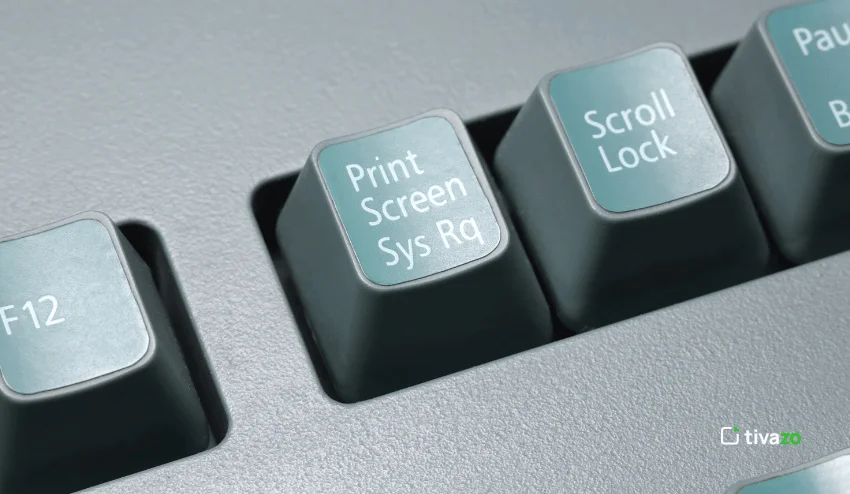
Pro tip: Capture a snap anytime with Win + Shift + S. The image will be copied to your clipboard and saved in the Snips folder, including a time stamp.
On Mac Using Screenshot App Timer
- Click Command + Shift + 5 to show the Screenshot toolbar.
- Click the Options link in the toolbar.
- Select a timer: 5 seconds or 10 seconds.
Select one of the capture types (full screen, window, or selection), then click Capture. - The screenshot is automatically saved to your Desktop or chosen folder with a time-stamped filename.
Manual timed screenshots are good for an individual, but not for managing a team. With Tivazo’s automated screenshot time tracking software, this can be done automatically for your entire workforce, without any manual work.
Is it possible to timestamp a Screenshot?
Yes, Here’s How
It is also a common requirement to have a visible timestamp added to a screenshot, and this could be for a variety of reasons, such as proof of work, documentation, legal purposes, or to verify client billing. There are several safe options depending on your operating-system and use case.
Method 1: File Name Timestamp (Automatic)
The date and time are added to the file name of every screenshot saved by Windows Snipping Tool, Mac Screenshot, or automated tools, such as Tivazo. This is the simplest type of time-stamping and is adequate for most recording applications.
Method 2: Visible On-Screen Timestamp (Using System Clock)
If you want to capture a screenshot, put on your clock or a world clock app to make sure the time is on the screen. Screenshots are embedded with the time stamp, which is beneficial for legal or compliance records.
Use image editing tools to add a Timestamp.
Method 3: Add a timestamp using Image Editing Tools
After capturing a screenshot, add a text timestamp using tools such as Paint (Windows) or Preview (Mac), or free tools such as ShareX. ShareX also comes with an annotation tool that will automatically add the exact time when taking a screenshot.
Method 4: Automated Timestamp using Screenshot Monitoring Software
In this case, tools such as Tivazo can do automatic and scalable timestamping. The Tivazo live screenshot feature captures every screen each time with an exact time stamp, associates it with the currently active project, and securely stores the images – without the need for the manager or employee to do any manual work, creating a tamper-proof and time-proven record.
Taking a Screenshot on a PC (All Methods)
It is important to first be aware of some of the shortcuts for taking screenshots on Windows PCs that come with the operating system to make the most of any screenshot time tracking software. Here are all of the details, all in one handy place:
| Method | Shortcut / Action | What It Does |
| Full Screen (saved) | Win + PrtScn | Saves the screenshot to Pictures > Screenshots folder. |
| Full Screen (clipboard) | Prtscn | Copies full-screen to the clipboard only |
| Active Window Only | Alt + PrtScn | Captures only the active window to the clipboard |
| Select any area | Win + Shift + S | Opens the snip toolbar to select any area |
| Snipping Tool (Delayed) | Snipping Tool (Delayed) | Delayed by 2–10 seconds |
| Game Bar (for apps) | Win + G | Opens Xbox Game Bar that includes the screengrab option. |
For Mac: Command + Shift + 3 to take a full screen shot, Command + Shift + 4 to take a customized screen shot, or Command + Shift + 5 to take a full toolbar plus timer screen shot.
For the Teams: These manual solutions are effective and suitable for individual users, but when it comes to monitoring teams on a large scale, automated screenshot time tracking is the way to go. See how Tivazo's employee monitoring software automatically manages all teams doing this.
7 Time Screen Screenshot Monitoring Advantages
Time screenshots provide more tangible business return than simple time tracking. The following are seven tangible benefits that have been demonstrated in the workplace:
1. Verified Proof of Work
Screenshots provide a tangible, visual, and objective record of what employees are doing. This helps to prevent the “billed hours” argument and provides a clear representation for clients, especially for agencies and consulting groups.
2. Greater Accountability, but not Micromanaging
Focus will naturally be raised when employees are aware that screenshots are being captured at regular intervals. The monitoring is passive; managers don’t have to constantly monitor, and employees aren’t being disrupted.
3. Get the right payroll for remote & distributed teams
Automated timesheets and time screenshots eliminate the guesswork from payroll, making it easier to record hours worked for real, rather than estimated or self-reported. This is essential for remote-first businesses that have employees in different time zones.
4. Early Identification of Productivity Problems
Activity scoring and screenshots identify trends of poor productivity in time before they turn into big problems, allowing managers to have a constructive conversation early.
5. Legal Compliance and Audit Trails
For professionals in sectors such as finance, healthcare, and legal, for example, the screen captures with timestamps offer proof of audit. For industries such as finance, healthcare, and legal, for instance, the screen captures with timestamps provide verifiable proof of audit. The GDPR compliant privacy masking of Tivazo will ensure that sensitive data is never made public as part of the process.
6. Better Project Cost Estimation
A historical view of the screenshot data will show exactly how past projects used time. This will help make future estimates much more accurate and avoid scope creep or budget overruns.
7. Greater team transparency and trust
Having employees’ own screenshots and productivity metrics, that allows for self-awareness and personal accountability. Tivazo’s two-way transparent approach allows staff to see what they are working on, fostering trust rather than fear.
A comprehensive comparison of the best screenshot time tracking software for 2026
The best time tracking software for screenshots comes down to the size of your team, your need for privacy, and the degree to which you need flexible interval settings.
Let’s compare the top tools side by side:
Assume that the position of the tool is indicated by its red circle. The red circle represents the location of the tool.
| Tool | Screenshot Interval | Privacy Controls |
| Tivazo | 5, 10, or 15 min (adjustable) | Smart masking + GDPR compliant |
| Hubstaff | Fixed 10 min only | Basic blur options |
| Time Doctor | Every 3 min (AI-analyzed) | Some masking available |
| Clockify | Optional add-on | Limited controls |
Tivazo is unique for three reasons: adjustable capture intervals, built-in smart privacy masking – erasing sensitive data before it is stored anywhere for the first time, and full GDPR/CCPA compliance. Tivazo has been designed for teams that need to be held accountable and trust their staff. See the complete employee monitoring capabilities or visit Tivazo’s pricing, free forever for teams of up to 10 members.
Privacy, Ethics, and Legal Issues

There are privacy, ethical, and legal issues to discuss.
The monitoring of screenshots should be done in a transparent manner and in line with local privacy laws. The following are the things that every organization must know:
- In most jurisdictions, it is legally required to let employees know in writing that the monitoring of their screens is taking place.
- GDPR (EU), CCPA (California), and other regulations mandate that employee monitoring data must be stored securely, only for a specific time frame, and be made available to the employee upon request.
- Financial information, personal messages, and confidential documents are automatically masked as soon as they are captured on screen with Tivazo’s customizable privacy masking and then stored in the screenshots.
- Transparent oversight is encouraged, and employees on Tivazo can view their own screened library and switch the status of their monitoring on/off to prevent hidden monitoring.
Note that for more in-depth information on compliant monitoring practices, refer to Tivazo’s screenshot privacy and smart masking guide.
Conclusion
One of the most useful tools when dealing with remote and distributed teams is a time screenshot. It connects logged hours to real work, making productivity tracking a more scientific endeavor.
From verifying billable hours for a client to ensuring accountability in a remote team to keeping a compliance audit trail, automated screenshot time tracking does away with manual work and provides the visibility you require.
Tivazo makes this process seamless with user-friendly time intervals, smart privacy masking, real-time dashboards, and GDPR compliant storage. You can join for free at tivazo.com, and teams of up to 10 players join for free, no credit card necessary.