From tracking time for employees to billing clients as a freelancer to managing a remote team as a business, understanding how to track time on Windows can make a world of difference in boosting productivity, maintaining accurate work hour records, and streamlining project management.
It’s easy to lose track of work hours, forget to bill, or make payroll mistakes without a reliable system in place.
The number of businesses adopting remote and hybrid work is growing rapidly, making it critical to ensure accurate time tracking to keep track of progress, boost accountability, and make informed business decisions.
Luckily for Windows users, there are several ways to keep track of time. There are several ways to manually record hours, such as spreadsheets, built-in Windows time tracking tools, or dedicated Windows time tracking software that automatically tracks your hours, creates reports, and helps you manage your timesheets.
You’ll find out the best ways to track time on a Windows PC, how manual time tracking differs from automatic time tracking, and some time tracking tips that will help you become more efficient as an employee or business.
Quick Answer
If you want to track time on a Windows PC, the easiest way to do so is with dedicated Windows time tracking software, which automatically tracks your working time, categorizes projects, and generates accurate timesheets.
Manual methods like Excel spreadsheets or Windows’ built-in productivity tools can be sufficient for individuals, but automated tracking is often advantageous for businesses, as it minimizes errors, saves time, and offers detailed insights into employee productivity.
Who Should Read This Guide?
This guide is ideal for:
- Employees tracking daily employee hours
- Remote and hybrid workers
- Freelancers tracking billable time
- HR professionals
- Project managers
- Small business owners
- Growing teams
Key Takeaways
- Windows users can track time manually or automatically, depending on their needs.
- Built-in Windows tools are useful for basic scheduling but have limited time-tracking capabilities.
- Automatic time tracking improves payroll accuracy and project management.
- Businesses can use time reports to monitor productivity and optimize workloads.
- Choosing the right tracking method depends on your team size, workflow, and reporting requirements.
What Is Time Tracking on Windows?
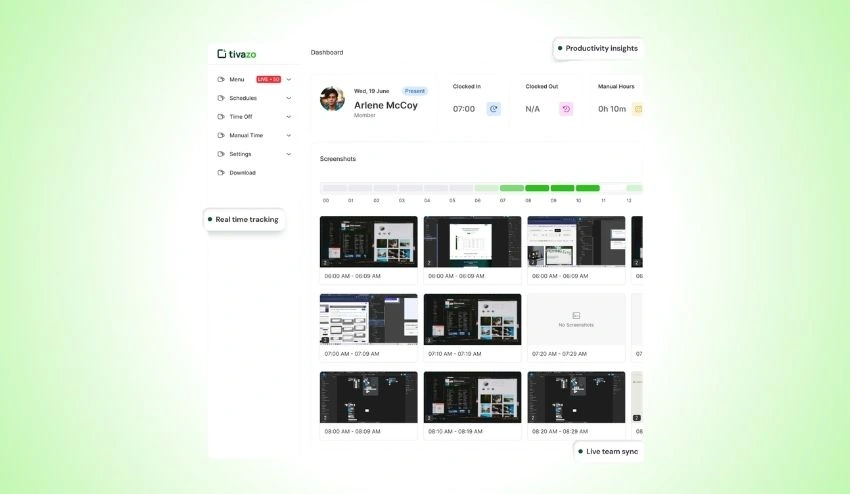
Time tracking on Windows is the recording of the time spent on tasks/projects or work activity performed on a Windows computer. The aim is to be aware of where time is spent to enhance productivity, workload management, and work records.
From using a spreadsheet to record your start and end times to implementing time tracking software that can automatically log active work hours, time tracking can be as simple or as sophisticated as you need it to be.
Time tracking improves work-related habits and concentration during the day for people. For business owners, it offers valuable information about project progress, employee utilization, and payroll accuracy.
Here are some typical use cases:
- Tracking daily working hours
- Recording billable client time
- Managing project timelines
- Creating employee timesheets
- Monitoring productivity across remote or hybrid teams
- Calculating overtime and attendance
Modern Windows time tracking software can also provide features like automated timers, project categorization, reporting dashboards, and connection with payroll or project management platforms, making it far more efficient than manual approaches.
Why Is Time Tracking Important on a Windows PC?
Time tracking is more than just knowing when you start and end your job. It provides valuable information that helps employees stay organized, managers make informed decisions, and businesses operate more efficiently.
1. Improves Productivity
If you know how your day at work is being spent, it’s easier to spot and prioritize those that are most important. Regularly checking hours tracked helps you develop good time management skills and habits.
2. Supports Accurate Payroll
Keeping accurate records of employee logged hours helps minimize payroll mistakes and ensure that payroll hours, overtime, and paid time off are accurately calculated. Companies with consistent time tracking spend less time fixing human error.
It is also important for employers to know the wage and hour requirements that apply. The U.S. Department of Labor gives official instructions for logging work time and following the rules of payroll legislation.
3. Simplifies Project Management
Project managers require visibility of the time needed for various activities. Time tracking enables more accurate estimates for future projects, keeping track of deadlines, and distributing workloads among the team.
4. Ensures Accurate Client Billing
Freelancers, agencies, or consulting companies will typically charge customers for the hours worked on specific projects. Helps prevent disputes and provides transparency to the invoice by tracking work hours.
5. Helps Remote Teams Stay Organized
In a distributed team, knowing the time entires and progress of projects is critical. Managers can leverage employee monitoring software alongside time tracking to gain insights into workloads, locate potential issues, and provide support to employees without constant monitoring.
What’s the Best Way to Track Time on Windows?
There are various options for tracking time on Windows, and the choice of the most suitable one depends on your needs.
Anyone can use Excel or other productivity tools that are available on Windows, and freelancers and businesses can leverage special time-tracking software that automates time tracking, reporting, and project management.
Different Ways to Track Time on Windows
There is no single “best” way to track time on Windows. The right way of doing things depends on how you work, whether you’re tracking your personal tasks, managing client projects, or overseeing a team.
While some people just need a basic record of hours worked, businesses often require detailed reports, project tracking, and ready-to-go timesheets for payroll. Being aware of your options can help you pick the best way.
| Time Tracking Method | Best For | Accuracy | Reporting |
| Manual spreadsheets | Individuals, students | Medium | Basic |
| Windows built-in tools | Personal productivity | Medium | Limited |
| Browser timers | Freelancers | High | Basic |
| Desktop time tracking software | Businesses & remote teams | High | Advanced |
Method 1: Track Time Manually on Windows
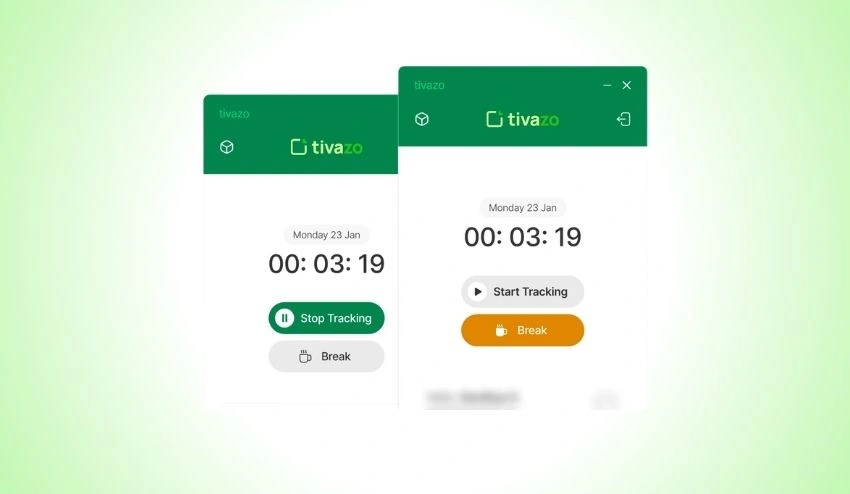
One of the simplest ways to track time manually is by recording your work hours in a spreadsheet, notebook, or digital document. You record your start time, end time, breaks, and activities completed, rather than using software.
It’s a good approach for people who have simple timetables, but it’s more difficult to keep track of as tasks and projects increase.
Use Microsoft Excel
A common application of Excel is for professionals to fill out daily or weekly timesheets.
The following are some items that can be added to a basic spreadsheet:
- Date
- Start time
- End time
- Break duration
- Total hours worked
- The name of the project or task.
In Excel, you have full control over all your records, but you have to manually update all your records. Not keeping track of hours can result in incorrect timesheets.
Use Google Sheets
Google Sheets is an online version of a spreadsheet, which is useful if you’re working on different devices or with others.
It allows you to:
- Access timesheets from anywhere
- Share records with managers
- Update hours in real time
But there are still a lot of manual calculations and entries to be made.
Keep a Daily Work Log
Some professionals just log their activities in one of their Word, OneNote, or Notepad applications.
For example:
- 9:00 AM – Email responses
- 10:00 AM – Team meeting
- 11:00 AM – Client proposal
- 2:00 PM – Project development
This method provides a way to record data for the day but does not automatically provide any totals or report capabilities.
Pros of Manual Time Tracking
- Free to use
- Easy to start
- No software installation
- Suitable for occasional tracking
Limitations
- Easy to forget entries
- Time-consuming
- Human errors are common
- No automatic reports
- Difficult for larger teams
When the work volume increases, it is beneficial to change to time tracking software, which will not only save manpower but also increase accuracy.
Method 2: Use Built-in Windows Features
Microsoft Windows has several productivity features that may be used to plan out your workday. These tools can help to plan tasks and keep your focus on your work, but they are not meant to monitor employee work time or create timesheets.
Microsoft Clock and Focus Sessions
Focus Sessions will allow you to work in blocks of time with timers that are based on productivity techniques. You can learn more about setting up and using Focus Sessions in Microsoft’s official documentation.
You can:
- Set work sessions
- Schedule breaks
- Minimize distractions
- Develop good work habits
This is good for personal productivity and not billable hours/project time tracking.
Microsoft To Do
Organize tasks and duties with task lists in Microsoft To Do. Microsoft’s official guide explains how Microsoft To Do can help organize tasks across devices and improve daily planning.
You can:
- Create task lists
- Set reminders
- Track completed tasks
- Prioritize important work
It enhances organization, but it doesn’t calculate the time spent on each activity.
Windows Calendar
You can schedule work blocks, meetings, and appointments on Outlook Calendar or on the Windows Calendar application.
This gives you a good overview of your day but not what you actually did (time spent per task).
Task Manager
To monitor applications and system performance, use Windows Task Manager.
It may indicate which applications are running, but it will not track or report productive work time or attendance.
Limitations of Built-in Windows Tools
While Windows provides some helpful productivity tools, there are some shortcomings for business use.
They cannot:
- Automatically track working time
- Record project time
- Generate reports
- Create employee timesheets
- Support payroll calculations
If accurate records are paramount, businesses can opt for specific Windows time tracking software, which offers a much more comprehensive solution.
Method 3: Track Time Automatically with Time Tracking Software
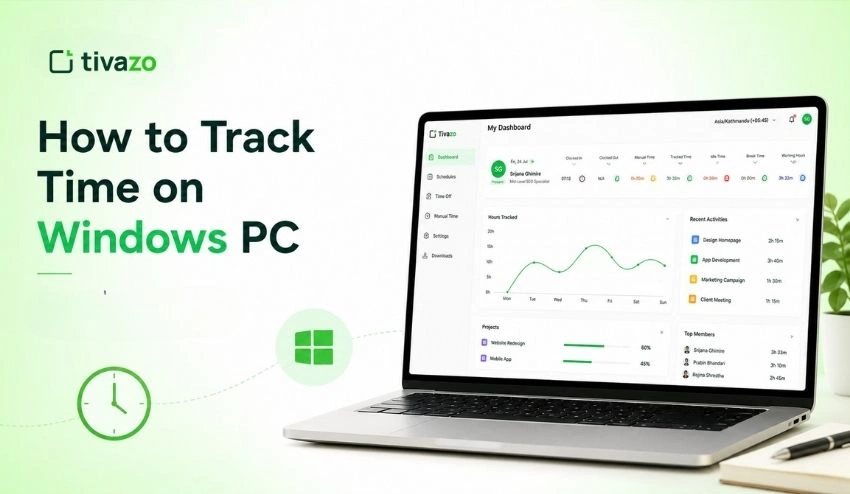
The best way to track work hours on a Windows PC is by using automatic time tracking. The software tracks your work activity and breaks it down into projects, tasks, and reports instead of typing in your hours.
This approach is a popular practice among businesses, remote teams, agencies, consultants, and freelancers, as it reduces administrative work and increases accuracy.
Most modern time-tracking tools usually:
- Start and stop timers with a single click
- Assign time to projects or clients
- Generate detailed reports
- Review daily and weekly activity
- Export timesheets for payroll or invoicing
Automation also minimizes human error by reducing forgotten entries and inaccurate calculations.
Benefits of Automatic Time Tracking
1. More precise work records
Automatic tracking tracks your working hours on the go so your records are more accurate than manual timesheets.
2. Improved Project Management
Managers can see how long different projects take, helping them allocate resources, estimate future work, and track progress.
3. Payroll made simple
Accurate tracking of hours worked speeds up payroll processing and reduces errors that can occur from manual calculations.
Teams can also use a time card calculator, if required, to verify hours before processing payments.
4. Detailed Reports
Automatic tracking software produces reports that show:
- Hours worked
- Project progress, team performance
- Trends in attendance
- Billable Time and Non-Billable Time
These insights enable businesses to make better operational decisions.
How to Track Time Using Tivazo (Step-by-Step)
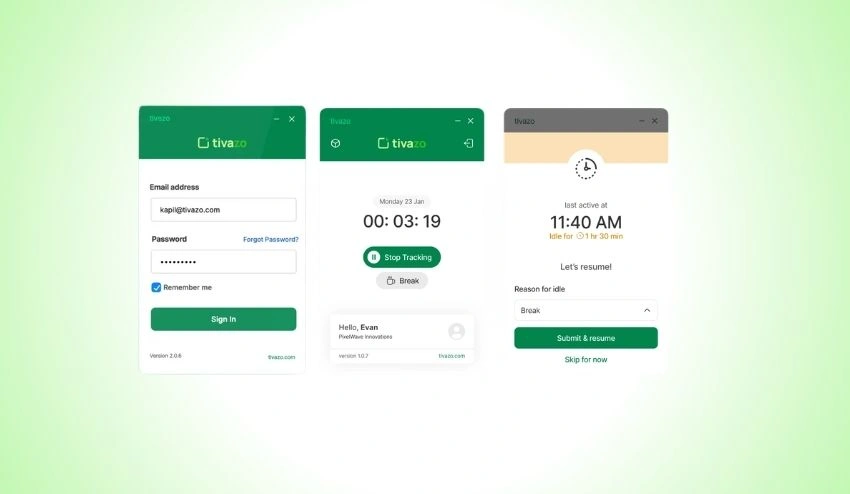
If you’re looking for a streamlined way to track work hours on Windows, Tivazo makes the process simple.
Step 1: Create Your Account
Sign up for Tivazo and create your workspace for yourself or your team.
Step 2: Install the Windows Desktop App
Download and install the Windows desktop app and start tracking time from your computer.
Step 3: Create Projects and Tasks
Organize your work into projects or clients so every recorded hour is assigned correctly.
Step 4: Start the Timer
When you begin working, start the timer with a single click. Tivazo automatically records your working session until you stop it.
Step 5: Switch Between Tasks
To keep your time records correct, simply change the active task when you switch from one project to another.
Step 6: Review Your Timesheets
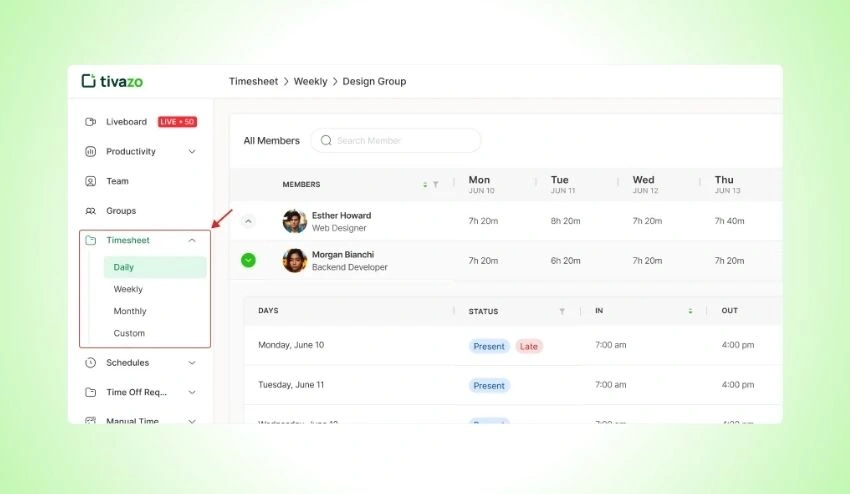
At the end of the day/week, check your logged hours on employee timesheets to make sure everything is accurate before sending them to your manager or payroll team.
Step 7: Generate Reports
Use reporting capabilities to analyze productivity, project progress, and total hours worked. Managers can use these insights to make better decisions and improve team efficiency.
Step 8: Export Time Records
Finally, export your timesheets or reports for payroll, client invoices, or project documentation.
The workflow allows employees to spend less time on manual record-keeping and more time on what matters.
Manual vs. Automatic Time Tracking: Which Is Right for You?
One of the biggest decisions when learning to track time on Windows is whether to use manual or automatic time tracking. Both methods can help you track work hours, but they differ in terms of accuracy, efficiency, and scalability.
Manual time tracking is when users manually enter their work hours, typically within a spreadsheet or notebook. Automatic time tracking records the hours you work in real time via dedicated software.
But if you’re still deciding which way is best for your workflow, understanding the differences between manual vs. automatic time tracking methods will help you make an informed decision.
| Feature | Manual Time Tracking | Automatic Time Tracking |
| Data Entry | manual | Automatic |
| Accuracy | Moderate | High |
| Time Required | High | Low |
| Human Error | Common | Minimal |
| Reports | Limited | Detailed |
| Best For | Individuals | Teams & Business |
Quick Comparison: Which Windows Time Tracking Method Is Best?
The best time tracking tool for you will depend on the size of your team, your reporting requirements, and your workflow. Manual tracking can be effective for some people, but for businesses, they need a more effective and efficient way of tracking time and getting insights that can be utilized.
The table below compares the three most common ways to track time on a Windows PC.
| Feature | Manual Tracking | Built-in Windows Tools | Time Tracking Software |
| Ease of Use | Good | Very Good | Excellent |
| Accuracy | Moderate | Moderate | High |
| Automatic Time Tracking | No | No | Yes |
| Project Management | No | Limited | Yes |
| Reporting & Analytics | Limited | No | Yes |
| Timesheet Generation | NO | No | Yes |
| Payroll Support | NO | No | Yes |
| Scalability | Suitable for individuals | Suitable for personal use | Suitable for teams and businesses |
| Best For | Individuals & freelancers | Personal productivity | Businesses, remote teams, and growing organizations |
Which option is the best?
If you only have to track a few work hours a week, a simple spreadsheet or even a few notes may be sufficient. Windows’ built-in productivity tools serve well for arranging your day but are not complete when it comes to tracking time.
Dedicated Windows time tracking software is the most comprehensive option for freelancers, remote workers, and enterprises with several projects.
It automatically logs the hours worked, produces detailed reports, makes timesheet management much easier, and provides insights that can help increase productivity and make better business decisions.
This edition is more professional, easier to read, and matches the tone of the top SaaS companies.
4 Common Challenges When Tracking Time on Windows
It can be difficult to track time accurately even when a structured process is in place. Knowing these challenges can assist employees and businesses in improving their habits and keeping accurate logs.
1. Forgetting to Record Work Hours
The most common problem is forgetting to start or end a timer, particularly when moving from one project to another or when unanticipated meetings arise.
2. Managing Multiple Tasks
Staff members are frequently on multiple projects at once. Staff members may be working on multiple projects in the course of the day. When there is no proper system in place, it is hard to know how much time is spent on each project.
3. Tracking Hybrid Work Schedules
These days, many companies have people working remotely and in the office. The records have to be kept up to date on multiple sites, so a consistent approach is needed.
Companies that put time tracking for hybrid teams into practice can gain insight into employee hours and maintain consistency in the way employees track their time.
4. Maintaining Accurate Records
When data is missing, project names are inconsistent, or breaks are not recorded, it can cause inaccuracies in time reporting, which will complicate project planning and payroll.
Best Practices for Accurate Time Tracking
Better time tracking habits lead to greater productivity and accurate and helpful timekeeping reports.
1. Track Time in Real Time
Write it down as it happens rather than having to remember it at the end of the day. This cuts the number of things to be left behind and the chances of error in documents significantly.
2. Set up Work by Project
Pinpoint each task to the appropriate project or client. Reports are easier to understand with organized records, which also aid in managing project performance.
3. Look over your weekly reports
Take time weekly to check on hours recorded. It is easier to correct small mistakes throughout the month than it would be to correct the whole month of timesheets.
4. Make a consistent routine for yourself
Have employees begin and end their tracking at the same locations each day. Consistency will enhance the quality of reporting and build up reliable work habits.
Many of these tasks can be automated by businesses that are leveraging Windows time tracking software, making it much easier for them to accurately track time.
Common Mistakes to Avoid
These are the common mistakes to avoid so you can make your records accurate, as well as quality reports.
Wait until the end of the day: After several hours, it is difficult to remember all the tasks to be recorded, which may result in incomplete or inaccurate records.
Recording Everything Under One Project: Multiple activities into a single project make it difficult to understand where your time is actually being spent.
Ignoring Short Tasks: Mundane tasks such as reading and replying to emails or attending meetings can add to your workload and should be recorded when applicable.
Not reviewing reports: The first step is only to record the time. Regularly reviewing reports can help to see productivity trends and opportunities for improvement.
How Businesses Benefit from Windows Time Tracking
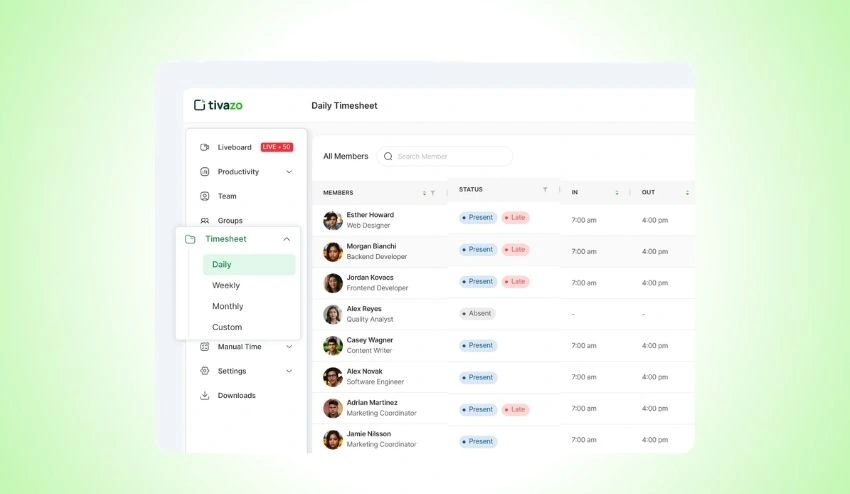
Time tracking is more than just an attendance tool; it gives you valuable data. Time tracking helps organizations improve planning, increase efficiency, and make informed operational decisions.
1. Better Productivity Insights
Time reports enable managers to gain insight into the time spent during the working day by employees, which helps in identifying the bottlenecks and optimizing the flow of work.
Organizations focused on employee productivity tracking can use these insights to balance workloads, improve project planning, and support employee performance.
2. Improve Resource Planning
By knowing the actual length of a project, businesses can manage their resources more efficiently and establish realistic project timelines.
3. Improved Client Billing
Proper tracking of hours worked helps ensure accurate billing for agencies, consultants, and freelancers.
4. Increased Accountability
Clear records promote transparency and help improve employee and manager work habits.
How to Choose the Best Time Tracking Software?
There is so much software available that some consideration needs to be taken in choosing the one you feel is right. The ideal solution should apply to your current workflow and continue to work as your business grows.
1. Ease of Use
Select software that is easy to use and has a user-friendly interface so that workers will get the hang of it without too much training.
2. Automatic Tracking
Manual work is minimized, and accurate work hour records are kept with automation.
3. Detailed Reporting
Detailed reporting gives you insights into productivity, project progress, and team performance.
4. Cross-Platform Compatibility
There are multiple operating systems used in various departments of many organizations. If you have employees on Mac and Windows platforms, you can use a time tracking app comparison for Mac and Windows platforms to ensure everyone gets the same experience.
Likewise, companies that have technical teams or developers may want to opt for software that also includes support for Linux time tracking software in order to accurately track time on all devices.
5. Scalability
Your time tracking solution should be scalable to accommodate more employees, projects, and reporting requirements as your business expands without necessitating the need to change your systems.
Conclusion
Being able to keep track of time on Windows can be crucial for maintaining accurate work hour records, project management, and boosting productivity.
Although manual approaches can be effective occasionally, automated solutions offer more precise results, streamline administration, and yield valuable insights that aid in informed business decisions.
From employees planning their day and freelancers tracking billable time to businesses dealing with a rapidly expanding workforce, picking the right time tracking method can save time and boost productivity.
Looking for a solution that offers automatic tracking, comprehensive reporting, and project management, all in one platform? You can find one to optimize work processes and boost productivity in the long run by getting Windows employee time tracking.